How Does a Bluetooth OBD Scanner Work Step by Step
Many drivers struggle to understand what their car’s warning lights really mean, and you’re not alone. A Bluetooth OBD scanner makes the process easier by connecting your car’s diagnostic system to your phone, helping you check trouble codes and live data without a trip to the repair shop.
A Bluetooth OBD scanner connects your car’s diagnostic system to your phone. First, locate the 16-pin OBD-II port beneath the dashboard and plug in the scanner. Turn on the ignition, enable Bluetooth, and pair the device through a compatible app.
Run a scan to view trouble codes, freeze-frame details, and live data such as engine speed and coolant temperature. Research codes before repairs, then clear them afterward and rescan.
Continue for connection tips and detailed steps.
Key Takeaways
- Plug the Bluetooth OBD scanner into the vehicle’s 16-pin OBD-II port, usually beneath the dashboard near the steering column.
- Turn the ignition on without starting the engine. This allows the scanner to receive power and communicate with the vehicle’s control modules.
- Enable Bluetooth, open a compatible diagnostic app, and pair your smartphone or tablet with the scanner.
- Use the app to scan trouble codes, view descriptions, and monitor live data such as engine speed, temperature, and sensor readings.
- Interpret the codes and repair any confirmed issues. Then clear the codes and rescan after driving to verify that the problem has been resolved.
Understand What a Bluetooth OBD Scanner Does
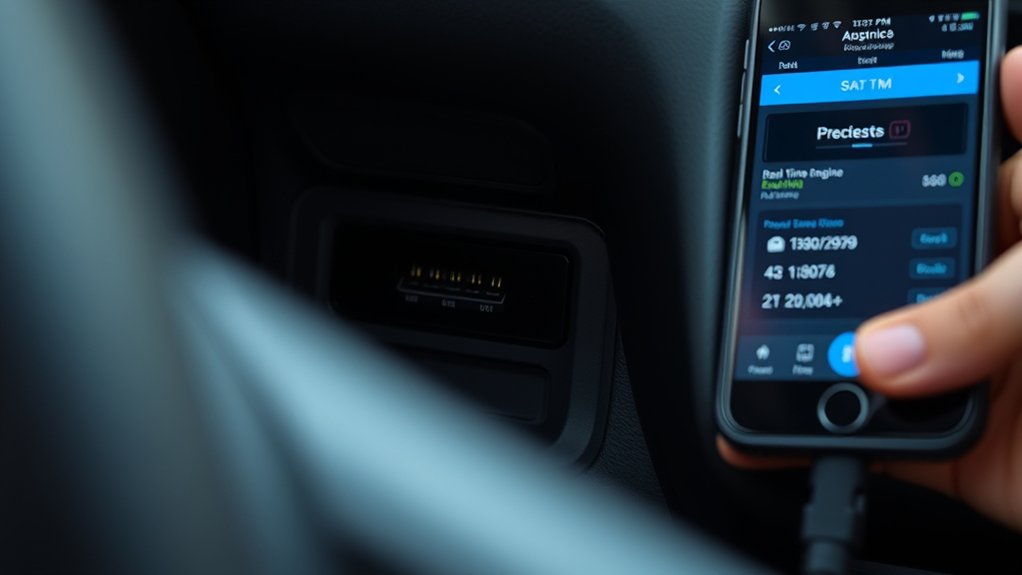
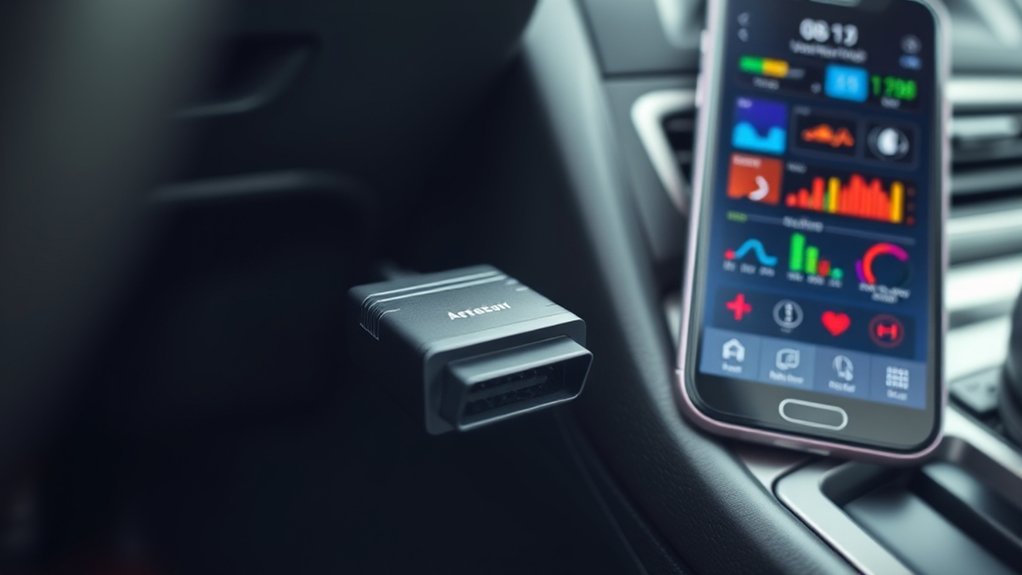
A Bluetooth OBD scanner reads your vehicle’s onboard diagnostic data and sends it wirelessly to a smartphone, tablet, or compatible display. It communicates with your car’s electronic control units, gathers information, and translates technical codes into details you can understand through a mobile app.
After you connect the scanner and open a compatible app, you can view trouble codes, sensor readings, system status, and selected live data. The scanner doesn’t repair problems or guarantee a diagnosis; it gives you useful evidence for troubleshooting and maintenance decisions.
View trouble codes and live data through the app, but remember: the scanner supports troubleshooting rather than guaranteeing a diagnosis.
Your app may also let you clear stored codes after you address an issue, though the warning light can return if the underlying fault remains.
Wireless connectivity makes access convenient without a cable between you and the display. However, you should consider Data security when choosing an app or scanner.
Use reputable software, update it regularly, and review permissions before sharing vehicle information or personal data.
Locate Your Car’s OBD-II Port
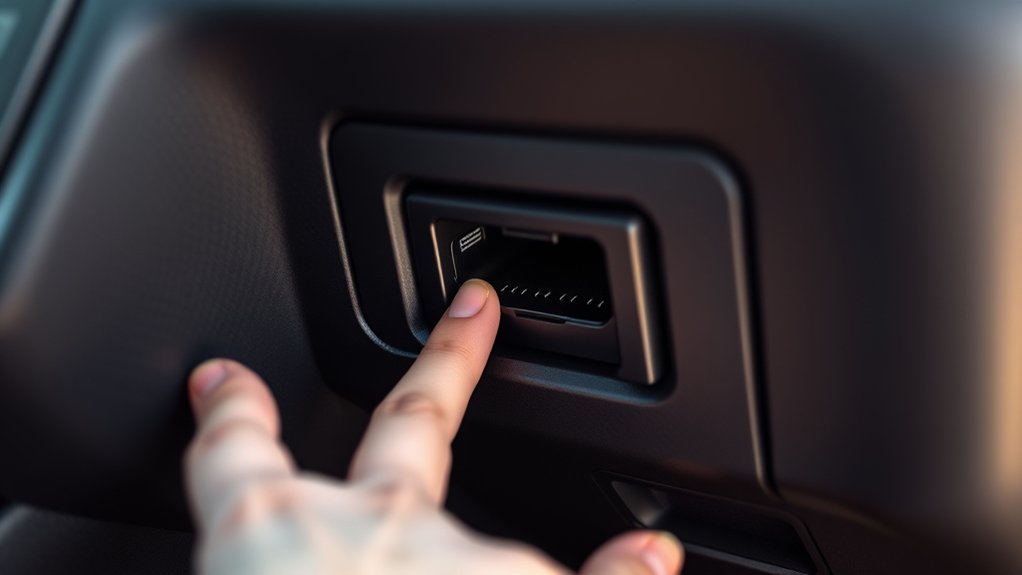
Once you’ve chosen a compatible app and scanner, locate your car’s OBD-II port before connecting anything. You’ll usually find this diagnostic socket beneath the dashboard, near the steering column.
Check the area above your driver’s footwell, below the instrument panel, or beside the fuse box. Some vehicles place it behind a small removable cover, inside the center console, or near the ashtray.
Your owner’s manual should show the exact location if you can’t spot it quickly. Look for a trapezoid-shaped, 16-pin connector, and don’t confuse it with a USB port or another accessory socket.
Use a flashlight to inspect dark spaces, and avoid forcing panels or pulling on nearby wiring. Finding the port helps you prepare for vehicle maintenance and engine diagnostics without disturbing other components.
Once you’ve identified it, make sure the surrounding area is clear and accessible. Leave the port uncovered and ready for the next step.
Plug In the Bluetooth OBD Scanner
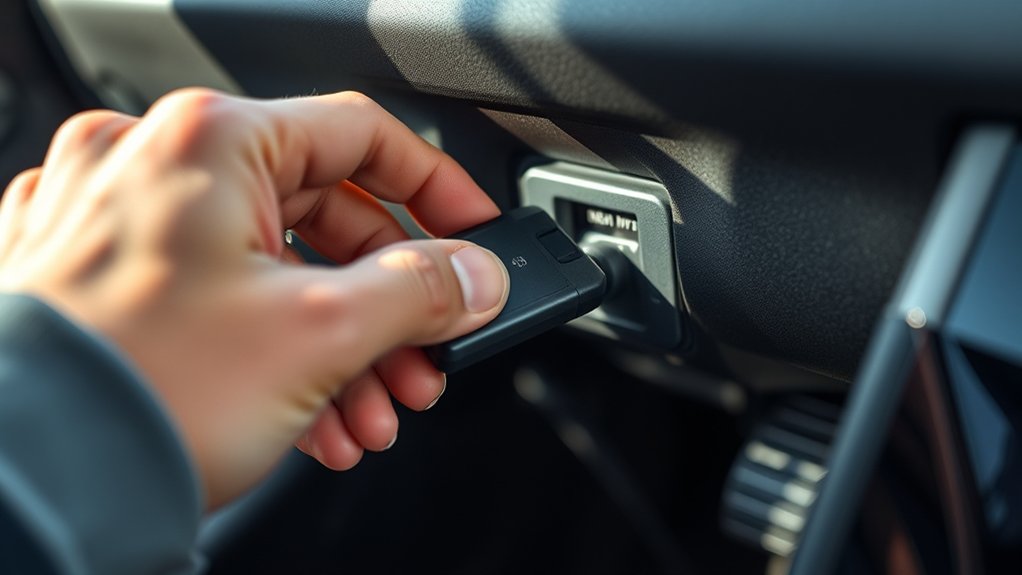
Once you’ve located your car’s OBD-II port, line up the Bluetooth scanner with the socket. Push it in firmly until it feels secure, but don’t force it.
Locate the OBD Port
Before plugging in the scanner, locate your vehicle’s OBD-II port, which is usually beneath the dashboard near the steering column. Look below the steering wheel, beside the fuse box, or near the center console.
Your owner’s manual can confirm its exact location, especially if your vehicle uses an unusual placement. Use a flashlight to inspect the area without removing panels or forcing anything.
Finding the port first makes vehicle maintenance more efficient and helps you prepare your Diagnostic tools correctly.
| Possible location | What to check |
|---|---|
| Under dashboard | Look beneath the steering column |
| Near fuse box | Check the driver’s lower knee panel |
The port has a standardized trapezoidal shape and may include a protective cover. Keep the ignition off while you identify it, and ensure you have enough space to work comfortably.
Don’t confuse it with USB, charging, or audio connections.
Insert the Scanner Firmly
With the ignition off, align the Bluetooth OBD scanner’s trapezoidal connector with the vehicle’s OBD-II port and push it in firmly until it’s fully seated. Don’t force the plug; if it won’t slide in smoothly, check its orientation and remove any obstruction.
You should feel a secure connection without excessive movement. Once installed, switch on the ignition without starting the engine, unless your scanner’s instructions specify otherwise.
Watch for an indicator light, which confirms that the scanner receives power. Keep the device clear of pedals, moving parts, and hot surfaces, and close the door carefully so you don’t bump it.
A firm connection helps prevent signal interference during data transmission and supports accurate Sensor calibration when you begin diagnostics through the companion app.
Turn On the Ignition and Scanner
Insert the Bluetooth OBD scanner into your vehicle’s diagnostic port, then turn the ignition to the “on” position without starting the engine. This supplies power to the scanner and activates your vehicle’s onboard diagnostic system.
Watch the scanner’s indicator light; it should illuminate or blink, showing that the device is ready to communicate.
If nothing happens, check that the connector sits firmly in the port and confirm that your vehicle’s battery has enough charge. Battery maintenance matters because a weak battery may prevent the scanner from powering up or cause communication interruptions.
Turn off unnecessary electrical accessories, such as the radio and headlights, while you perform this step.
Keep the scanner away from other wireless electronics when possible. Signal interference can disrupt the Bluetooth connection or delay communication.
Don’t start the engine unless your vehicle’s instructions specifically require it. Once the scanner shows power, leave the ignition on and proceed to the next setup step.
Install a Compatible OBD App
Once the scanner has powered up, install an OBD app that’s compatible with both the scanner and your smartphone. Open your phone’s official app store, search for a reputable diagnostic application, and review its description before downloading.
Check Vehicle compatibility carefully, because some apps support only specific makes, models, years, or operating systems. Confirm that the app works with your Bluetooth scanner rather than assuming every OBD application supports every adapter.
Next, examine the App features to choose an option that matches your needs. Basic apps may display trouble codes and live sensor data, while advanced versions can offer code definitions, vehicle reports, dashboards, readiness checks, and data logging.
Read recent user reviews, verify the developer, and inspect the required permissions. Install the app, then open it and complete any setup prompts.
Keep the application updated so you receive bug fixes, improved vehicle coverage, and current diagnostic definitions. Don’t connect the scanner yet; you’ll handle that in the next step.
Pair the Scanner With Your Phone
Turn on Bluetooth on your phone to get started. Then open the app and select your OBD scanner from the list of available devices. Follow the prompts to finish pairing. Once connected, you can start reading your vehicle’s data.
Enable Bluetooth Pairing
Start by plugging the Bluetooth OBD scanner into your vehicle’s diagnostic port, then switch on the ignition without starting the engine. Wait for the scanner’s indicator light to confirm that it has power.
On your phone, open Settings, select Bluetooth, and turn it on. Keep your phone near the scanner so it can find the device quickly.
Tap the scanner’s name when it appears in the available-devices list. If prompted, enter the supplied PIN, usually printed in the manual or on the scanner.
Wireless security protects the connection, while Bluetooth protocols manage device discovery, pairing, and data exchange. Accept any permission requests your phone displays.
When the status changes to “Connected” or “Paired,” leave Bluetooth enabled. Don’t start the vehicle or open a diagnostic app yet.
Select the OBD Scanner
With Bluetooth enabled and the scanner powered, open your phone’s Bluetooth settings and select the scanner from the list of available devices. If prompted, enter the PIN shown in the scanner’s manual, then wait for the pairing confirmation.
Keep your phone close to the adapter during this process to prevent connection interruptions. Compatibility considerations matter: check whether the scanner supports your phone’s operating system and the diagnostic app you plan to use.
After pairing, open the app and grant Bluetooth permissions when requested. You may need to select the scanner again within the app before it can communicate with your vehicle.
Check for firmware updates, too, because updated software can improve stability, expand vehicle coverage, and fix connection problems. Once connected, secure the scanner and continue with the app’s setup instructions.
Run a Scan for Trouble Codes
Once the Bluetooth OBD scanner connects to your vehicle, open the companion app and select the option to scan for trouble codes. Keep the ignition on, and follow the app’s instructions while it communicates with the vehicle’s onboard computer.
The scan may take a few moments, so don’t disconnect the adapter or close the app.
When the process finishes, the app displays any stored diagnostic trouble codes, often with brief descriptions. Write down each code exactly as shown, including letters and numbers.
A code doesn’t identify a failed part with absolute certainty. It points you toward a system or condition that needs attention.
Use a reliable repair manual or trusted database to interpret the results before replacing anything.
If the app reports no codes, your vehicle’s computer hasn’t detected a stored fault. Save the scan results for your car maintenance records.
Diagnostic tools work best when you treat their findings as starting points for further testing.
Check Live Data in the OBD App
Open your OBD app’s live-data screen to monitor real-time metrics, such as engine speed, coolant temperature, and sensor readings. Compare the values with their normal ranges to identify anything unusual. From there, you can interpret the diagnostic readings and better understand your vehicle’s condition.
Monitor Real-Time Metrics
Live data lets you watch your vehicle’s operating conditions as they change. Open your Bluetooth OBD app, connect the scanner, and select the live-data screen.
As you drive, you can track key metrics without stopping for manual checks. Use these readings to support Vehicle maintenance and Engine diagnostics while focusing only on current performance.
| Metric | What You’ll See | Why It Matters |
|---|---|---|
| Engine speed | RPM changes | Shows workload |
| Coolant temperature | Temperature rise | Confirms warm-up |
| Vehicle speed | Speed changes | Matches road conditions |
| Throttle position | Pedal response | Reveals demand |
Keep the display visible only when parked, or let a passenger monitor it. Compare values during startup, acceleration, cruising, and idling.
Watching patterns over time helps you notice changes early and gives you useful context for later checks.
Interpret Diagnostic Readings
Interpreting diagnostic readings means comparing live-data values with expected behavior, not reacting to a single number. Open your OBD app and review engine speed, coolant temperature, fuel trims, oxygen-sensor voltage, and intake readings together.
Watch how values change during startup, idling, acceleration, and cruising. A consistently high positive fuel trim may indicate a vacuum leak, while abnormal coolant temperature can point to a failing sensor or thermostat.
Compare readings with your vehicle’s service specifications, because normal ranges vary by engine and operating conditions. Don’t replace parts based on one unusual value; confirm patterns, scan for trouble codes, and inspect related components.
This approach supports smarter Vehicle maintenance and helps you identify problems that could affect Emission standards. Save screenshots or logs to track changes after repairs and verify the fix.
Interpret and Clear Trouble Codes
Once your Bluetooth OBD scanner retrieves a trouble code, the app translates it into a description that points to the affected system, such as the engine, transmission, or emissions equipment.
Review the code’s definition, freeze-frame data, and severity before deciding what it means. A code identifies a monitored fault, but it doesn’t always pinpoint the failed part.
Compare the symptoms with the code and use a reliable repair manual or service database for confirmation.
After recording the code, inspect any recommended tests and address the underlying problem. Don’t clear the code simply to turn off the warning light. The issue may return, and you could erase useful diagnostic information.
When you’ve completed repairs, select “Clear Codes” in the app and confirm the command. The scanner resets stored faults and may turn off the check-engine light.
Drive normally, then rescan to verify the repair. Monitoring codes can protect Engine performance and Fuel efficiency.
Fix Common Bluetooth OBD Connection Issues
If your Bluetooth OBD scanner won’t connect, start by checking that the vehicle’s ignition is on and the adapter fits securely in the OBD-II port. Then confirm that you’ve selected the correct adapter in your phone’s Bluetooth settings and granted the diagnostic app required permissions.
Some scanners connect only through the app, so don’t pair them from your phone’s menu first. Close other OBD apps, restart Bluetooth, and reboot your phone if the connection still fails.
Move away from routers, wireless chargers, and crowded Bluetooth environments to reduce wireless interference. Keep your phone within a few feet of the vehicle, and remove thick cases if they weaken the signal.
Check battery maintenance regularly: a low vehicle battery or weak scanner battery can interrupt communication. Try another compatible app, update the scanner’s firmware, and inspect the connector for bent pins or dirt.
Finally, turn the ignition off, wait briefly, and retry the connection.
Frequently Asked Questions
Are Bluetooth OBD Scanners Compatible With Every Vehicle Model?
No, Bluetooth OBD scanners aren’t compatible with every vehicle model. Vehicle compatibility depends on your car’s diagnostic port, protocol, model year, and region.
Most scanners work with vehicles built after 1996 in the United States and later in other markets, but some brands require specialized tools. Scanner limitations may prevent access to manufacturer-specific systems, including airbags, ABS, or transmission modules.
Check your vehicle and scanner specifications before purchasing to guarantee proper support.
Can a Bluetooth OBD Scanner Drain My Car’s Battery?
Yes, a Bluetooth OBD scanner can drain your car’s battery, especially if you leave it plugged in while the vehicle sits unused. Its power consumption is usually low, but continuous operation may gradually weaken the battery over several days or weeks.
To prevent battery drain, unplug the scanner when you park for extended periods. Some models enter sleep mode automatically, reducing risk, but you should still check the manufacturer’s specifications and monitor battery health.
Are Bluetooth OBD Scanners Safe From Hacking or Unauthorized Access?
Bluetooth OBD scanners aren’t completely safe from hacking or unauthorized access, so you should use caution. Wireless security varies by model; choose one that requires pairing, uses strong authentication, and receives firmware updates.
Data encryption helps protect communication, but inexpensive devices may lack robust safeguards. Disable Bluetooth when you’re finished, avoid unknown apps, and don’t leave the scanner connected while driving.
Buy reputable hardware, review permissions, and monitor your vehicle for unusual behavior.
How Much Does a Reliable Bluetooth OBD Scanner Typically Cost?
You’ll typically pay $20–$50 for a reliable Bluetooth OBD scanner. Basic models handle diagnostic trouble codes and live data, while premium options cost $60–$150 and add advanced manufacturer codes, battery testing, stronger security, and better apps.
Your cost comparison should consider subscription fees, warranty coverage, and update policies. Feature differences matter: choose a budget scanner for occasional checks, or invest more if you need professional-level diagnostics, broader vehicle compatibility, or frequent use.
Can Bluetooth OBD Scanners Monitor Emissions Readiness for Inspections?
Yes, Bluetooth OBD scanners can monitor emissions readiness before inspection, but there’s a catch: your vehicle compatibility matters. Connect the scanner, open its app, and check readiness monitors, diagnostic trouble codes, and pending faults.
You’ll see whether systems such as the catalyst, oxygen sensors, and evaporative controls report “ready.” However, inspectors may use different requirements, so confirm local emission testing rules.
Clearing codes or disconnecting the battery can reset the monitors and delay approval.
Conclusion
A Bluetooth OBD scanner turns your car’s hidden warnings into readable information. You locate the port, plug in the scanner, switch on the ignition, and connect through an app.
Then, you scan codes, watch live data, and clear warnings after making repairs. Ironically, diagnosing a “mysterious” dashboard light can be easier than finding your misplaced keys.
With a few simple steps, you’ll understand your car better and may save yourself an unnecessary trip to the repair shop. That’s how a Bluetooth OBD scanner works step by step.